MSPs who provide co-managed services with customers using Jamf products face interesting dilemmas when it comes to implementing SSO:
- With only one SAML SSO allowed, should SSO be set up using the customer’s IdP or the MSP’s?
- If SSO is set up with the MSP’s IdP, then customers can’t use SSO for Self Service or Enrollment.
- How can access be securely granted in a way that doesn’t utilize shared credentials?
- How can access be limited for MSP staff who may not have appropriate training?
- How can accounts for departed MSP staff be easily revoked?
Luckily Jamf’s recent implementation of Jamf Account SSO solves these challenges! This post will go over the steps to properly set this up co-management to solve these issues and grant both the MSP and customer access to a single instance.
This is designed to be a higher level overview instead of a step by step guide. Please read my guide on managing rights via groups before this to familiarize yourself with how group based roles are processed through Jamf Account.
Notes:
- This currently doesn’t work with Google Workspaces OIDC, only Okta and Entra ID.
- If you’ve set up a Jamf Account SSO connection using “Okta” as the IdP type you’ll need to delete this and recreate it using Generic OIDC as the type so you can scope group claims.
Jamf MSP program and Co-Management
First off, is the question of co-management – is it allowed? Yes it is, but the MSP is responsible for any modifications a customer makes though. Refer to section 4 of your MSP Addendum for more details.
Setting up Jamf Account OIDC in your parent account
This assumes you’ve configured Jamf Account OIDC for your main MSP parent account already. Next go to Organization > SSO > OIDC account, scroll down to find the child account you wish to work on and enable Jamf Pro/Protect/Safe Internet for that account.
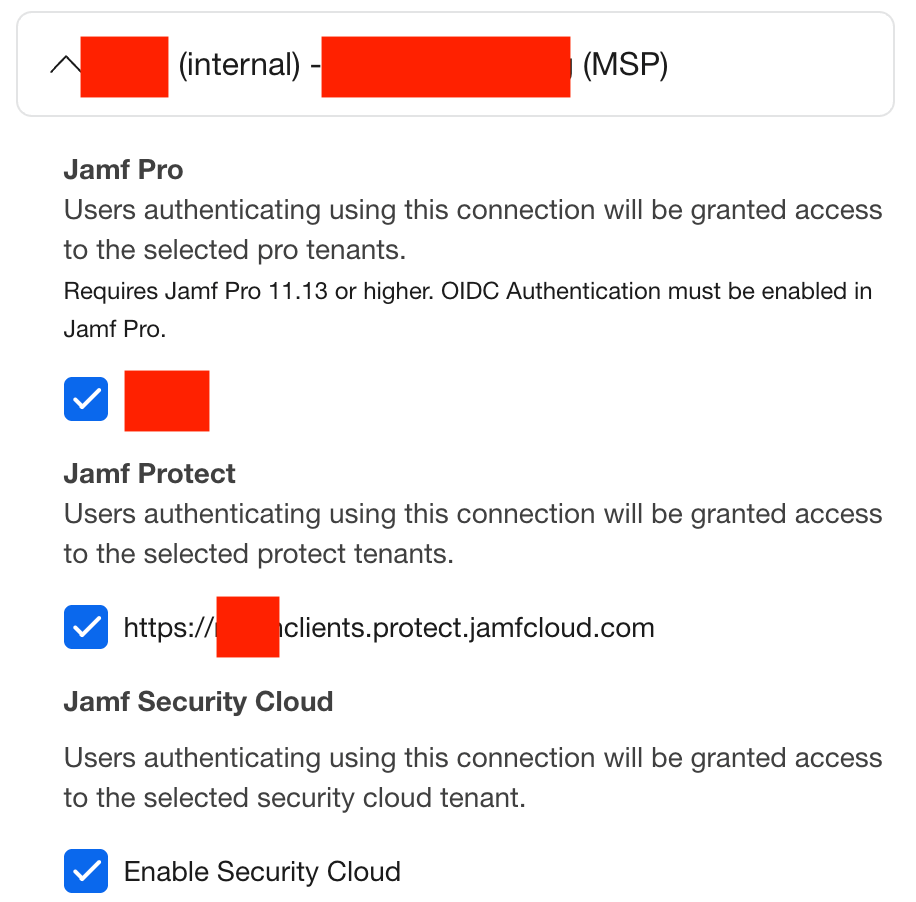
Setting up Jamf Account OIDC for the child account
The Jamf Account for MSP portal doesn’t allow you to directly edit child accounts. You’ll need to take the following steps:
- Reach out to your customer success manager for each child Jamf account and request they add an owner account that’s in the customer’s domain. This could be a real human at the customer or an account you have access to.
- Go to https://id.jamf.com/CommunitiesSelfReg and sign up for a Jamf Account using that same mailbox.
- Sign in to Jamf Account as the customer owner, verify your domain, and configure OIDC.
- Make sure to enable SSO for the Jamf Pro/Protect/Security Cloud assets associated with this customer!
Creating groups in Jamf Pro
Follow my guide for group based access to create Standard groups with no members to assign access and permissions for both the customer IdP and your IdP.
You’ll want to do separate groups for your access vs. customer access. For example you could have the following groups:
- Jamf-msp-auditor
- Jamf-msp-admin
- Jamf-admin
- Jamf-auditor
Enable OIDC in Jamf Pro
Follow Jamf’s online instructions SSO with OIDC Through Jamf Account to enable Jamf account.
To allow for a seamless end user experience I recommend still using SAML authentication for end users to access enrollment and Self Service. If you don’t then end users will be provisioned at Read Only Administrators in the child Jamf Account.

Creating Groups in Jamf Protect
Follow Jamf’s instructions for User Roles and Groups with the following key notes:
- Create a group that exactly matches your IdP groups
- Users will be Just In Time Provisioned
- Jamf Protect doesn’t provision admin accounts.
The moment of truth
Now is the moment of truth, using a private browser window you should be able to access your Jamf Pro and Jamf Protect account with either a MSP or a customer account.
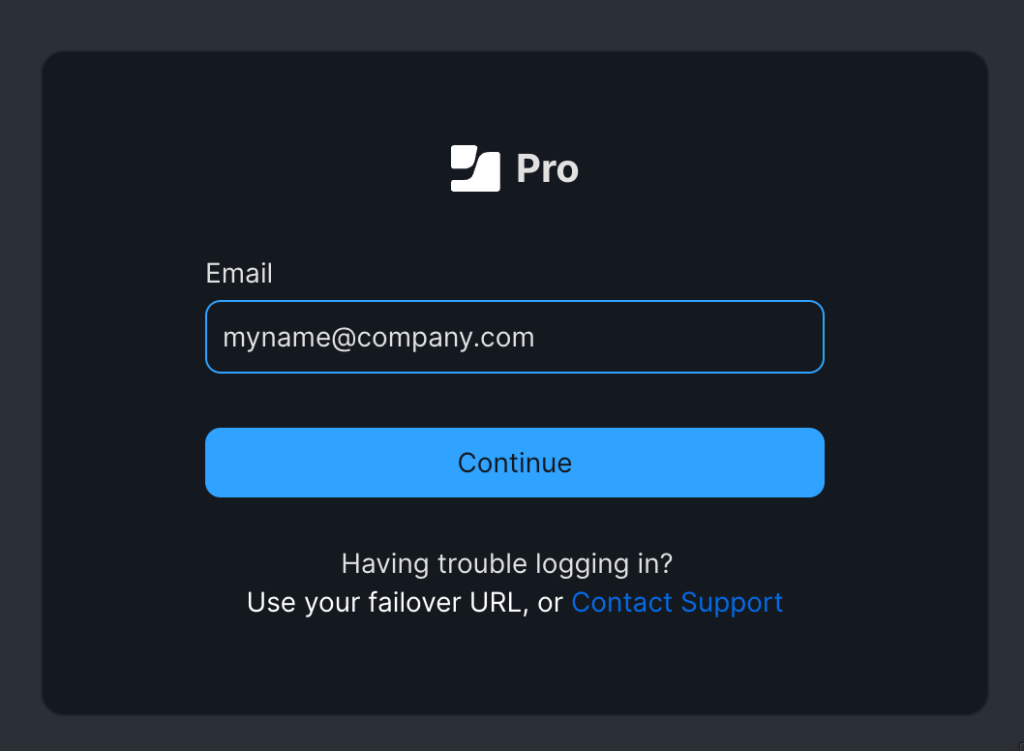
Troubleshooting
Access Denied: You are not granted access to this application in your organization’s identity provider (IdP). Ask your IT administrator for assistance.

This is typically caused by the group membership from Okta not properly being applied. Enable debug logging, try to sign in again and then search for the email address you signed in with. Check the logs for your email, if you see an error message similar to below a group couldn’t be matched.
2025-04-15 02:47:51,350 [DEBUG] [Tomcat-22 ] [gesAuthorizationProcessor] - User [myname@company.com] has no privilegesSolutions:
- Check your OIDC connection in Jamf account has the groups scope.
- Ensure your IdP is set to provide the group claim.
- Ensure that the account is a member of the group in your IdP.
- Ensure the group name in Jamf Pro exactly matches group name in your IdP.
A Jamf username and password box is displayed
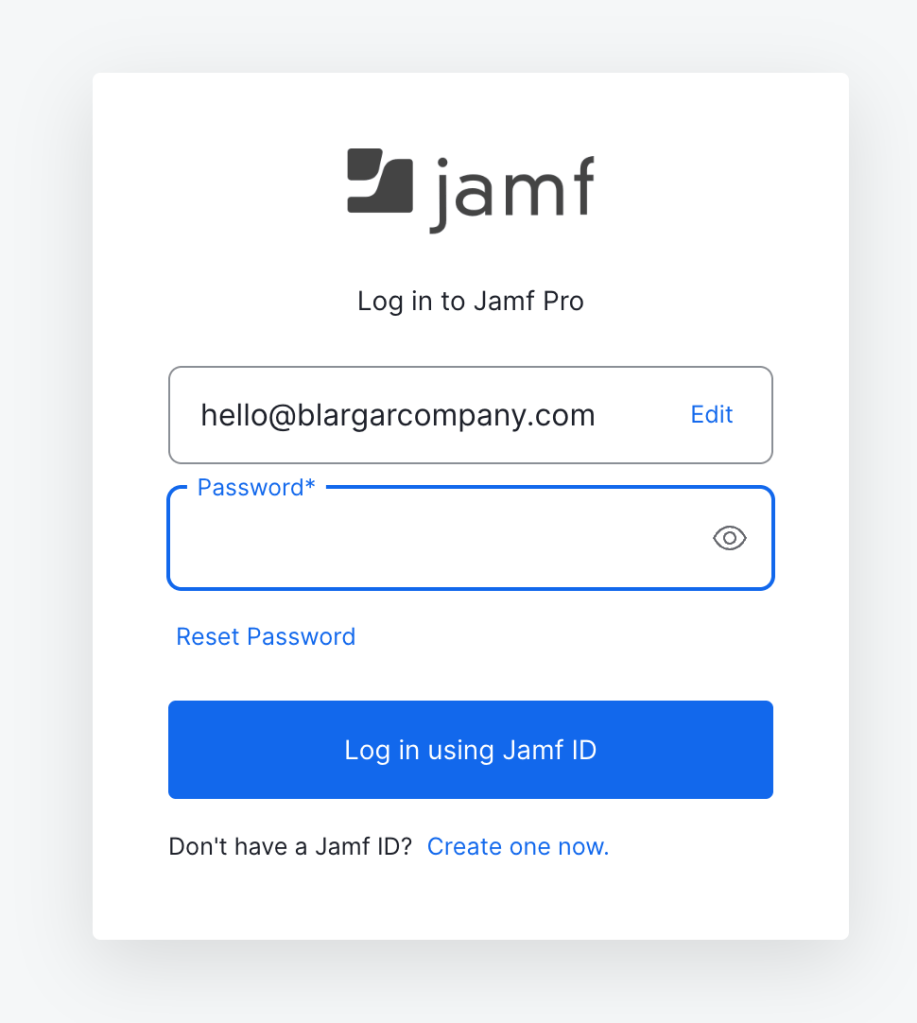
If you get a Jamf Account Username/Password window then:
- The domain isn’t verified in Jamf Account.
- An OIDC app isn’t assigned to the domain in Jamf Account.
- Jamf Account sign in isn’t enabled for the instance in Jamf Account.
 IT Notes