Introduced in macOS 26 Apple Business Manager (ABM) supports migrating devices from one MDM to another. One unintended feature of this is the ability to use the migration to repair broken MDM communications, including mismatched APNs topics with expired MDM profiles. This saves IT from performing a device erase or going into recovery mode.
This guide will go over how to correctly set up Apple Business Manager and Jamf to repair MDM communications. At a high level we’ll be creating a 2nd Management Service in Apple Business Manager that links back to the same Jamf Pro Server. This will allow us to “migrate” devices from Jamf Pro to Jamf Pro which will force a reenrollment.
Interested in more MDM Communication fixes? Check our our JNUC Sessions Flawless MDM Communication and Flawless MDM Communications: Scripting Edition
Feedback has been sent to Apple to allow ABM to simply execute a fix.
Jamf – Download Jamf ADE Public Key
Login to Jamf Pro and navigate to Settings > Global > Automated Device Enrollment and download the Public Key at the top right
ABM – Create Device Management Service
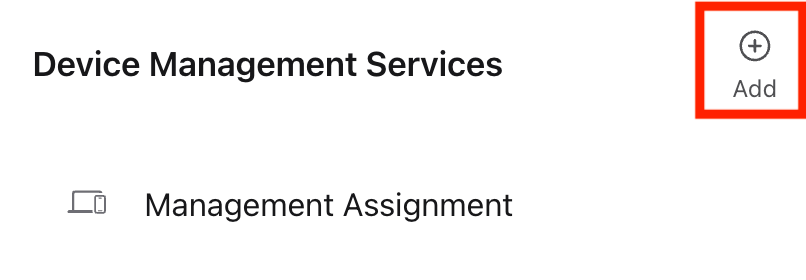
Login to Apple Business Manager account and navigate to Preferences > Device Management Services and Click Add
Service Info: Company Jamf Fix
UNCHECK Allow this device management service to release devices.
Upload the public Key previously downloaded.
Click Save
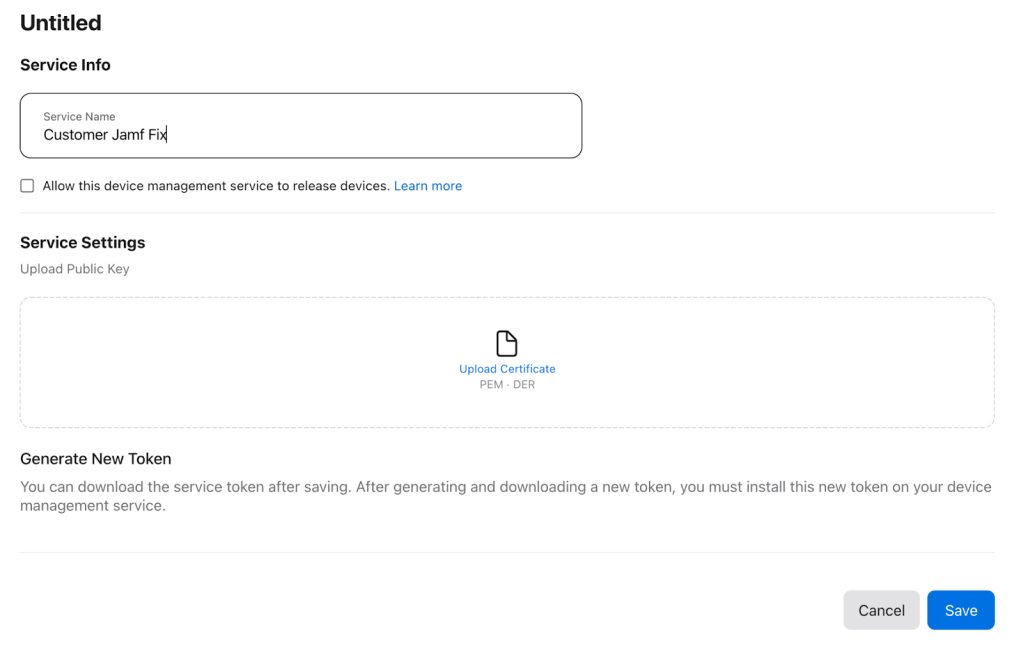
Click Download Token

Jamf – Create ADE Enrollment
Login to Jamf Pro and navigate to Settings > Global > Automated Device Enrollment and click New
Display Name: Company Apple Business Manager Fix
Upload the token from above.
Supervision identity for user with Apple Configurator: None
Jamf – Clone Computer PreStage
Login to Jamf Pro and Navigate to Computers > PreStage Enrollment
Click on the primary PreStage enrollment for computers
Click Clone at the bottom
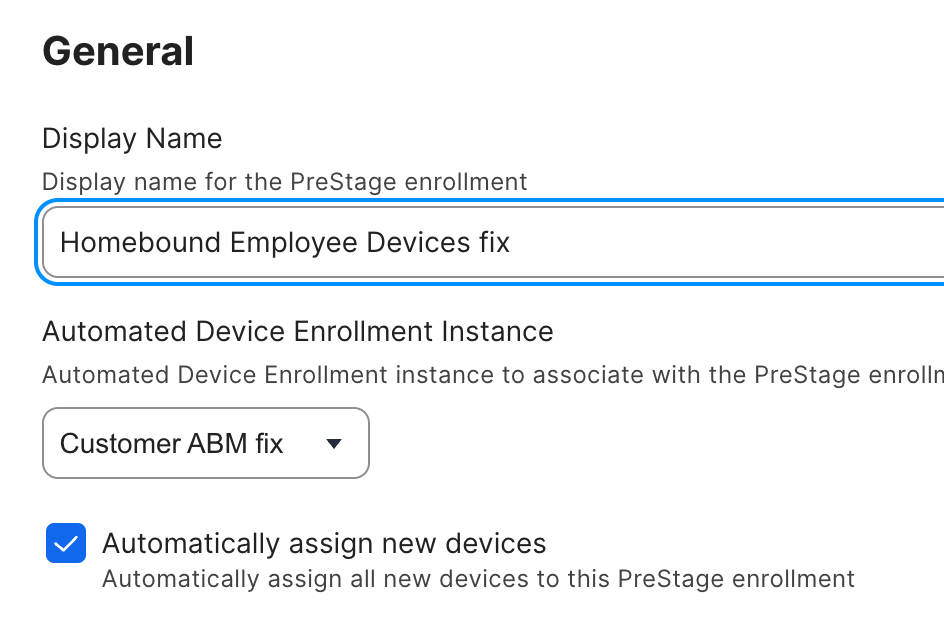
Add “fix” to the end of the display name
Change Automated Device Enrollment Instance to ABM fix
Check Automatically assign new devices.
Click Save

Jamf – Clone Device PreStage
Login to Jamf Pro and Navigate to Devices > PreStage Enrollment
Click on the primary PreStage enrollment for devices
Click Clone at the bottom
Add “fix” to the end of the display name
Change Automated Device Enrollment Instance to Company ABM fix
Check Automatically assign new devices.
Click Save
Repairing a device
Jamf – Identify Device serial and eligibility
When you’ve identified a device that needs to be repaired, go into Jamf and get its serial number. Also verify that it’s running at least macOS 26 Tahoe.
ABM – Assign Device
Login to the ABM and click Devices.
Search for the Serial number
- If the serial number isn’t here then the device isn’t in Apple Business Manager and isn’t eligible for repair. But it can be automatically repaired using Mann’s APNs fix workflow.
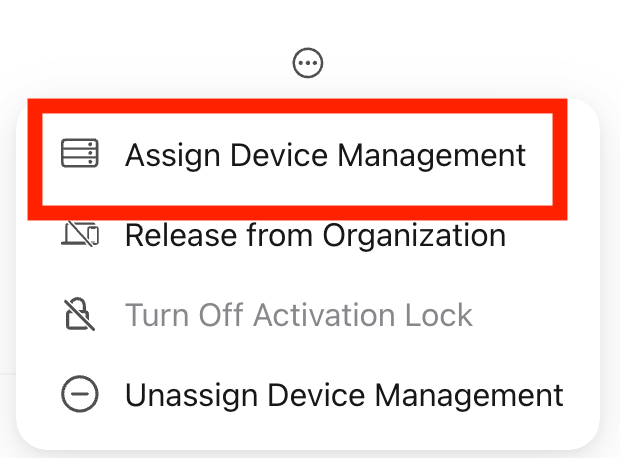
Click the … in the upper right corner of the record and then Assign Device Management
Select the Company Jamf Fix instance and set a deadline, usually 1 week away at 8:30am local time is best.
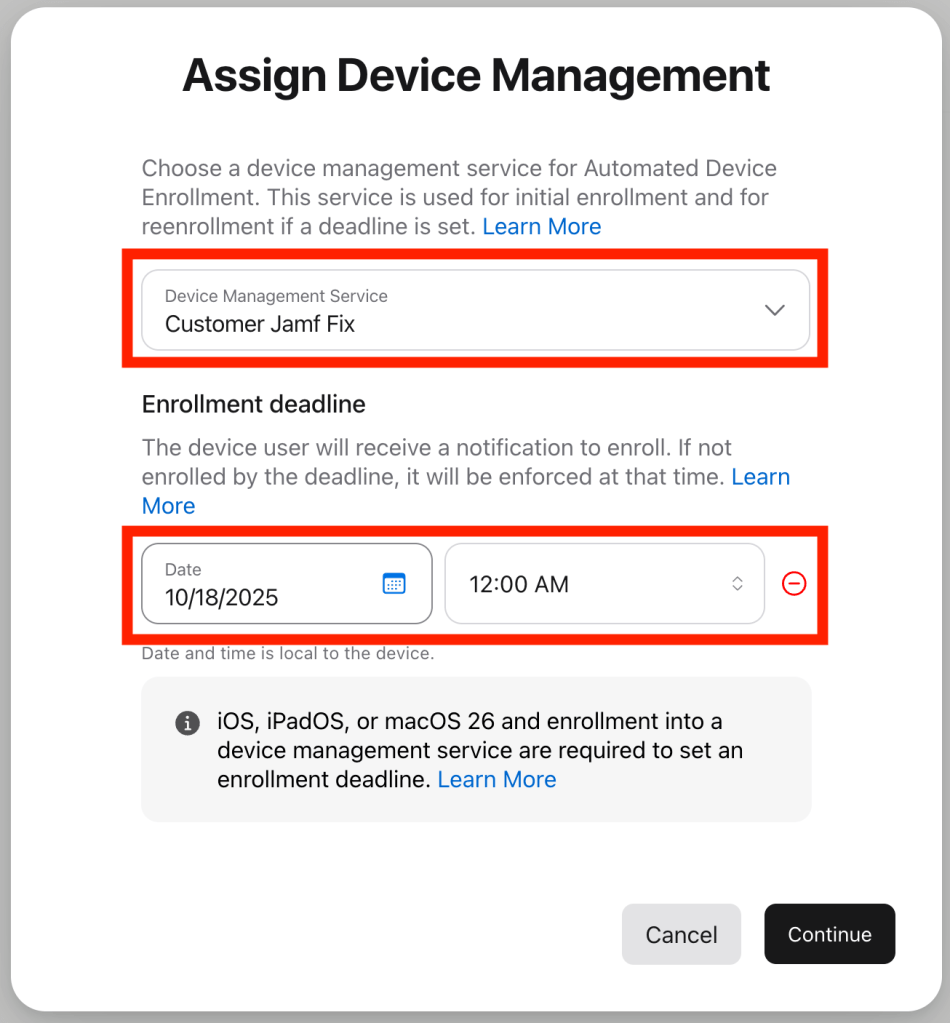
Once you click continue the device will be forced to move through the process.
Employee Experience
macOS user experience
As the deadline approaches, users will get notifications informing them that management of their device needs to be updated by a specific date. These appear every 24 hours then hourly leading up to the deadline.

When the user clicks Start Enrollment, they will get a full screen pop-up where they can click Enroll. If the user clicks this before the deadline, they will have the option to defer with Not now.
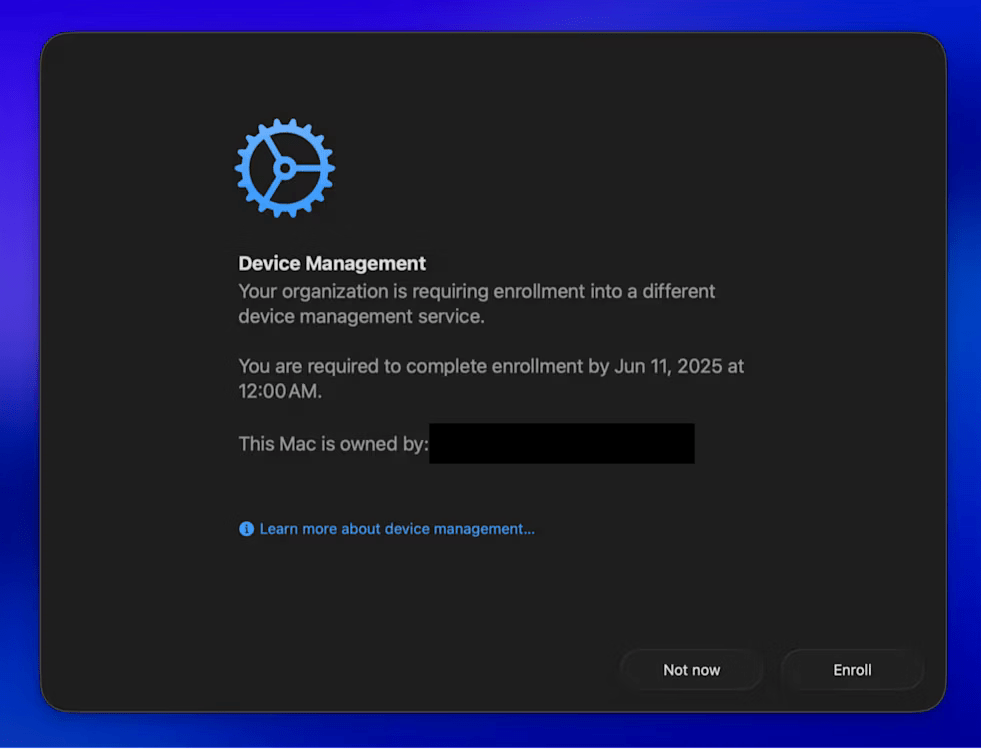
Once Enroll is clicked profiles start installing, after a few moments when everything is downloaded and Enrollment complete messages appears
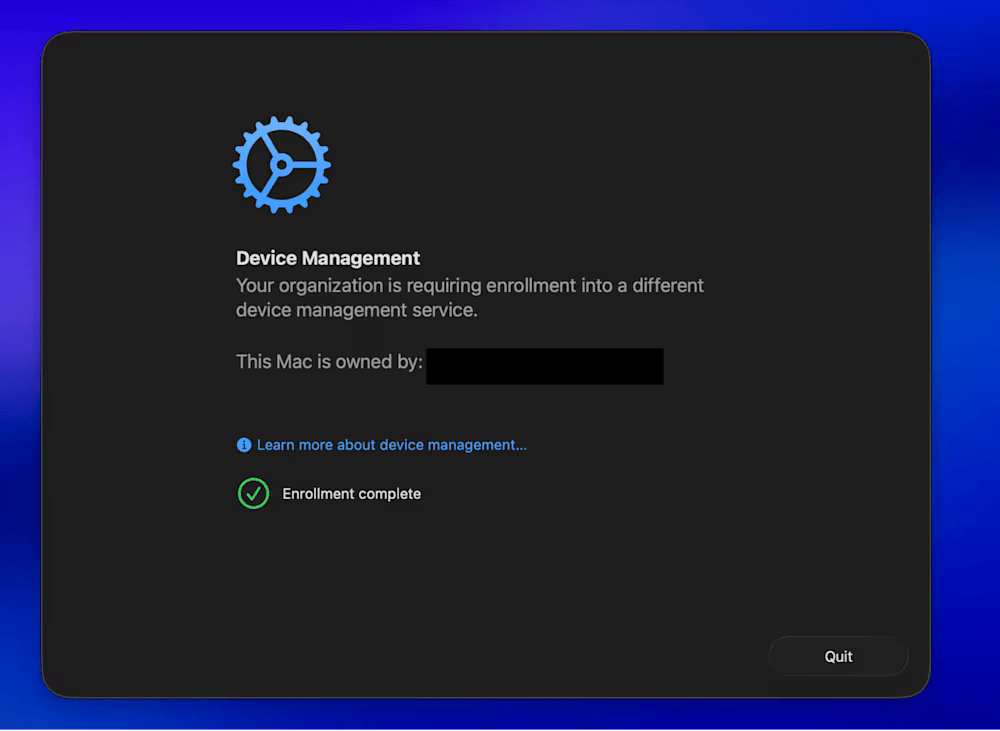
Once quit is clicked no restart is necessary.
iOS user experience
The user will receive a prompt that enrollment is required.

Following this prompt will bring the user to the Settings app:
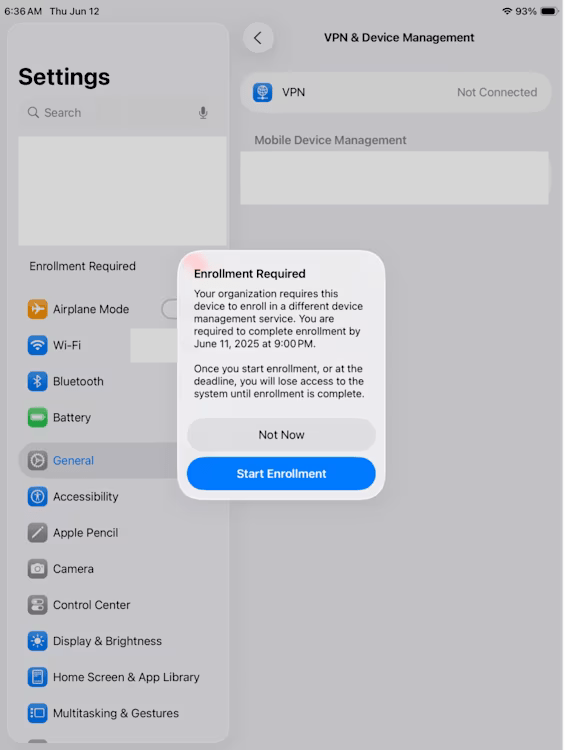
Selecting Start Enrollment will show a subsequent prompt notifying the user that a restart is required:

After selecting Restart, the device will promptly reboot and complete the enrollment in the new MDM service. The migration is now finished.
If the user elects to exit this flow at any point by selecting Not Now, they will be able to re-initiate it through Settings by tapping the Enrollment Required notice.
 IT Notes